Todays post is a small detour from the regular Exchange related posts. The other day I was troubleshooting an issue with a program. It did not behave as expected in production and so I fired up WinDbg to inspect the value of some objects. I attached WindDbg to the process in question and load psscor4, a replacement from Microsoft for the standard SOS extension (Note that if you want to use psscor, you need the right version: Psscor2 is for .NET 2.0-3.5 software. Psscor4 is only for .NET 4 programs). The WinDbg results I present in this article are not from the process I actually examined. I hacked together a small sample program instead.
The sample class creates instances of a class named Person. A Person class has two properties: A name (string) and an age (int). The object instance I’m looking for is named Mallory. The goal is to get a look at the object instance with a call to !DumpObj. So all I need is the memory address of the Person instance named Alice. This should be easy.
So here we go. First, load the SOS extension. Since I ‘m examining an x64 process, I ‘m using the X64 version of psscor.
.load C:\temp\Psscor4\amd64\amd64\psscor4.dll
The first thing to do is to get an overview about the target class. How many instances of the Person class are currently lying around? A call to Dumpheap reveals this:
0:007> !dumpheap -type Person -stat
Loading the heap objects into our cache.
total 21 objects
Statistics:
              MT    Count    TotalSize       Change Class Name
000007ff000242b0        1           40            1 System.Collections.Generic.List`1[[DebugTest.Person, DebugTest]]
000007ff00024220       20          640           20 DebugTest.Person
So, we have one list of Person objects: List<Person> and 20 instances of the Person class itself. Since there are only 20 of them, let’s just dump them to the console:
Total 21 objects, Total size: 680
0:007> !dumpheap -type Person
Loading the heap objects into our cache.
         Address               MT     Size
00000000027f2588 000007ff000242b0       40    0 System.Collections.Generic.List`1[[DebugTest.Person, DebugTest]]
00000000027f2588 000007ff000242b0       40
00000000027f25d0 000007ff00024220       32    0 DebugTest.Person
00000000027f25d0 000007ff00024220       32
00000000027f2630 000007ff00024220       32    0 DebugTest.Person
00000000027f2630 000007ff00024220       32
00000000027f2650 000007ff00024220       32    0 DebugTest.Person
00000000027f2650 000007ff00024220       32
00000000027f2670 000007ff00024220       32    0 DebugTest.Person
00000000027f2670 000007ff00024220       32
00000000027f2690 000007ff00024220       32    0 DebugTest.Person
00000000027f2690 000007ff00024220       32
00000000027f2710 000007ff00024220       32    0 DebugTest.Person
00000000027f2710 000007ff00024220       32
00000000027f2730 000007ff00024220       32    0 DebugTest.Person
00000000027f2730 000007ff00024220       32
00000000027f2750 000007ff00024220       32    0 DebugTest.Person
00000000027f2750 000007ff00024220       32
00000000027f2770 000007ff00024220       32    0 DebugTest.Person
00000000027f2770 000007ff00024220       32
00000000027f2830 000007ff00024220       32    0 DebugTest.Person
00000000027f2830 000007ff00024220       32
00000000027f2850 000007ff00024220       32    0 DebugTest.Person
00000000027f2850 000007ff00024220       32
00000000027f2870 000007ff00024220       32    0 DebugTest.Person
00000000027f2870 000007ff00024220       32
00000000027f2890 000007ff00024220       32    0 DebugTest.Person
00000000027f2890 000007ff00024220       32
00000000027f28b0 000007ff00024220       32    0 DebugTest.Person
00000000027f28b0 000007ff00024220       32
00000000027f28d0 000007ff00024220       32    0 DebugTest.Person
00000000027f28d0 000007ff00024220       32
00000000027f28f0 000007ff00024220       32    0 DebugTest.Person
00000000027f28f0 000007ff00024220       32
00000000027f2910 000007ff00024220       32    0 DebugTest.Person
00000000027f2910 000007ff00024220       32
00000000027f2a50 000007ff00024220       32    0 DebugTest.Person
00000000027f2a50 000007ff00024220       32
00000000027f2a70 000007ff00024220       32    0 DebugTest.Person
00000000027f2a70 000007ff00024220       32
00000000027f2a90 000007ff00024220       32    0 DebugTest.Person
00000000027f2a90 000007ff00024220       32
So, twenty objects. Let’s have a look at one of the instances. This can be achieved using the !DumpObj command, or !do, in short:
0:007> !do 00000000027f2830
Name:        DebugTest.Person
MethodTable: 000007ff00024220
EEClass:     000007ff00132400
Size:        32(0x20) bytes
File:        c:\users\hkrause\documents\visual studio 2010\Projects\DebugTest\DebugTest\bin\Debug\DebugTest.exe
Fields:
              MT    Field   Offset                 Type VT     Attr            Value Name
000007fef5786870  4000001        8        System.String  0 instance 00000000027f22e8 <Name>k__BackingField
000007fef578c758  4000002       10         System.Int32  1 instance               25 <Age>k__BackingField
The interesting lines here are the last two. They describe the details and the values of the properties. Since I used auto-properties instead of traditional ones they are named <Name>k__BackingField instead something like _Name. Since the name if of type System.String, the value is a reference. So, the next step is to issue a !DumpObj on the value of that field:
0:007> !do 00000000027f22e8
Name:        System.String
MethodTable: 000007fef5786870
EEClass:     000007fef530ed58
Size:        38(0x26) bytes
File:        C:\Windows\Microsoft.Net\assembly\GAC_64\mscorlib\v4.0_4.0.0.0__b77a5c561934e089\mscorlib.dll
String:      Bob
Fields:
              MT    Field   Offset                 Type VT     Attr            Value Name
000007fef578c758  4000103        8         System.Int32  1 instance                6 m_stringLength
000007fef578b298  4000104        c          System.Char  1 instance               57 m_firstChar
000007fef5786870  4000105       10        System.String  0   shared           static Empty
                                 >> Domain:Value  00000000003ab570:00000000027e1420 <<
The nice thing about !DumpObj is that it prints string values directly to the console. In this case, the value is Bob. Ok, so this is not the instance I’m searching for. Hmm, just to check one instance for its name, I have to issue two !DumpObj commands and do a lot of copy-and-paste to copy the addresses from the console to the command line. And in this example, there are only 20 instances. In the process I debugged, there were much more. There must be a better way to do this. A colleague of mine jumped to help and together we indeed came up with one.
The idea is the following:
- Get a list of the addresses of all Person instances.
- For each entry
- Given the address of the Perons instance, get the value of the <Name>k__BackingField
- Print out the address of the Person instance along with the string value of the <Name>k__BackingField.
The first step is easy: Just execute this line:
!DumpHeap -type Person -short
This command will just dump the addresses of each instance to the console. Iterating through this list is also trivial, thanks to the foreach command:
.foreach(entry {!dumpheap -type Person -short}){.printf "%p:\n", entry;}
For each entry in the list returned by the command between the first pair curly braces, the variable entry is populated with the value and the command sequence between the second pair of curly braces is executed. The example above just prints out the value itself.
Now comes the harder part. We need to figure out the value of the backing field for the Name property. A closer inspection of the !DumpObj result above reveals that the field is stored at memory offset 8 inside of the object. To read that memory directly, the dq command can be used (dq because I’m debugging a 64bit process. Use dd for a 32bit process). Dq prints the memory at the specified address in the form of 64bit hex values to the screen. Since we are only interested in the 64-bit pointer at offset 8 of that object, we issue this command:
0:007> dq 00000000027f2830+8 L1
00000000`027f2838  00000000`027f22e8
The 00000000027f2830+8 specifies the memory address we are interested in. And the L1 specifies that we only want one quad-word. You can see that the result from the dq operation equals the vlaue of the backing field: 00000000027f22e8. We now need a way to dereference that memory address and print the value of the string at that point. At this point it’s good to know how .NET strings are stored in memory: A length indicator (32bit) followed by an unicode-char-array. The result of the DumpObj command on the string instance “Bob” above reveled that the character array starts at offset 0x0c within the string instance. To print the value of the string, the dq command cannot be used because we are interested in the string value itself. For this, the du command can be used. du means: Dump unicode string. To dereference the pointer provided by the dq command, the poi operator can be used. All combined, this resolves to this command:
0:007> du poi(00000000027f2830+8)+c
00000000`027f22f4  "Walter"
Nice, exactly what we wanted. Now we can combine this with the foreach command above:
0:007> .foreach(entry {!dumpheap -type Person -short}){.printf "%p: ", entry; du poi(${entry}+8)+c;.printf "\n"}
00000000027f2588: 00000000`027f293c  ""

00000000027f2588: 00000000`027f293c  ""

00000000027f25d0: 00000000`027f219c  "Alice"

00000000027f25d0: 00000000`027f219c  "Alice"

00000000027f2630: 00000000`027f21c4  "Bob"

00000000027f2630: 00000000`027f21c4  "Bob"

00000000027f2650: 00000000`027f21e4  "Carol"

00000000027f2650: 00000000`027f21e4  "Carol"

00000000027f2670: 00000000`027f220c  "Chuck"

00000000027f2670: 00000000`027f220c  "Chuck"

00000000027f2690: 00000000`027f2234  "Dave"

00000000027f2690: 00000000`027f2234  "Dave"

00000000027f2710: 00000000`027f225c  "Eve"

00000000027f2710: 00000000`027f225c  "Eve"

00000000027f2730: 00000000`027f227c  "Mallory"

00000000027f2730: 00000000`027f227c  "Mallory"

00000000027f2750: 00000000`027f22a4  "Peggy"

00000000027f2750: 00000000`027f22a4  "Peggy"

00000000027f2770: 00000000`027f22cc  "Victor"

00000000027f2770: 00000000`027f22cc  "Victor"

00000000027f2830: 00000000`027f22f4  "Walter"

00000000027f2830: 00000000`027f22f4  "Walter"

00000000027f2850: 00000000`027f231c  "Trent"

00000000027f2850: 00000000`027f231c  "Trent"

00000000027f2870: 00000000`027f2344  "Charlie"

00000000027f2870: 00000000`027f2344  "Charlie"

00000000027f2890: 00000000`027f236c  "Carlos"

00000000027f2890: 00000000`027f236c  "Carlos"

00000000027f28b0: 00000000`027f2394  "Arthur"

00000000027f28b0: 00000000`027f2394  "Arthur"

00000000027f28d0: 00000000`027f23bc  "Merlin"

00000000027f28d0: 00000000`027f23bc  "Merlin"

00000000027f28f0: 00000000`027f23e4  "Paul "

00000000027f28f0: 00000000`027f23e4  "Paul "

00000000027f2910: 00000000`027f2234  "Dave"

00000000027f2910: 00000000`027f2234  "Dave"

00000000027f2a50: 00000000`027f240c  "Sue"

00000000027f2a50: 00000000`027f240c  "Sue"

00000000027f2a70: 00000000`027f242c  "John"

00000000027f2a70: 00000000`027f242c  "John"

00000000027f2a90: 00000000`027f2454  "George"

00000000027f2a90: 00000000`027f2454  "George"
Now we can easily spot the instance named Mallory: It’s located at 00000000027f2730 and we can issue a !DumpObj on that address:
0:007> !do 00000000027f2730
Name:        DebugTest.Person
MethodTable: 000007ff00024220
EEClass:     000007ff00132400
Size:        32(0x20) bytes
File:        c:\users\hkrause\documents\visual studio 2010\Projects\DebugTest\DebugTest\bin\Debug\DebugTest.exe
Fields:
              MT    Field   Offset                 Type VT     Attr            Value Name
000007fef5786870  4000001        8        System.String  0 instance 00000000027f2270 <Name>k__BackingField
000007fef578c758  4000002       10         System.Int32  1 instance               34 <Age>k__BackingField
Case closed  .
.
23e87f3d-3cbf-477c-b367-ff28ebda0d3b|7|4.9
Resharper (awesome tool btw) makes it really easy to add sanity checks to your code. Just hit Alt+Enter on a method parameter and select “Check parameter for null”:
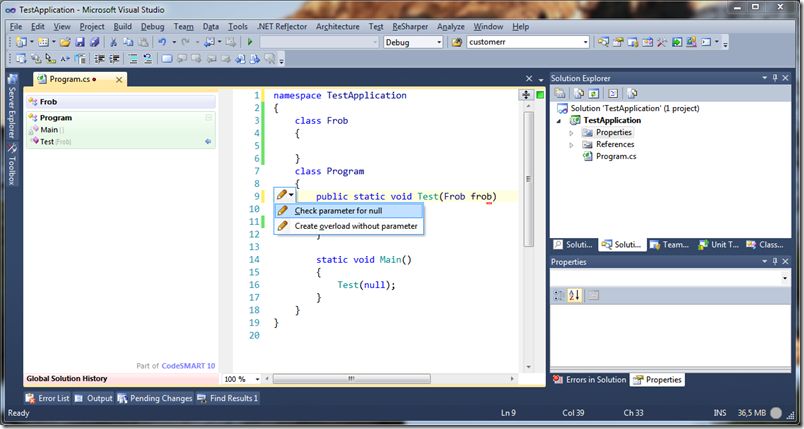
This inserts this code:
public static void Test(Frob frob)
{
    if (frob == null) throw new ArgumentNullException("frob");
}
This is great, but once you have started working with Code Contracts (see here for a small tutorial on how to setup Code Contracts) you might want to migrate all those null checks to preconditions. Resharper offers a very powerful feature to to just that: Structural search and replace. It even goes so far that it will highlight parts of code and offers a quick-fix to change conventional argument checking into preconditions. All we need to do is to create a pattern which recognizes an old argument-null check and a replacement pattern:
- From the main menu, select ReSharper –> Tools–> Pattern catalog
- Click Add pattern
- In the search pattern edit box, add this line:
if ($parameter$ == null) throw new ArgumentNullException($expression$);
- In the Replace pattern edit box, add this line:
Contract.Requires($parameter$ != null);
- Click Add Placeholder and select Identifier. Name the placeholder parameter.
- Click Add Placeholder again and select Expression. Name the placeholder expression and select System.String as the expression type.
- Ensure that the Format after replace and Shorten references options are both checked.
- Click Save to persist the new pattern.
Resharper will immediately recognize traditional argument checking code and offer a replacement:
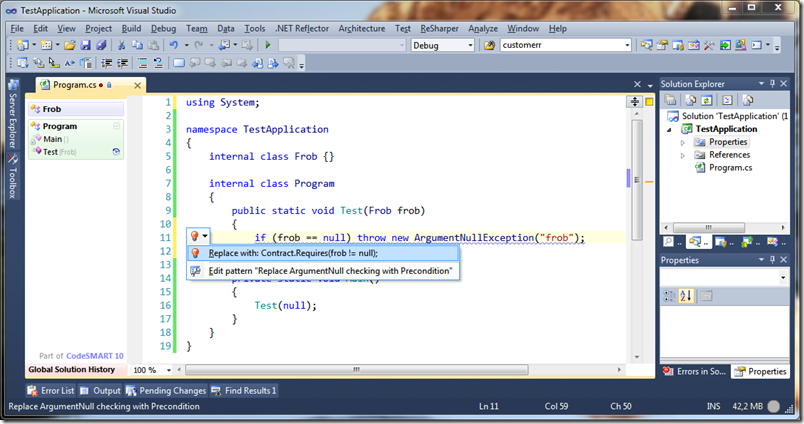
After the quickfix has been applied, the method looks like this:
public static void Test(Frob frob)
{
    Contract.Requires(frob != null);
}
If you have enabled runtime checking (as per my last post about this topic), a ContractException will be thrown then the precondition is not met. Obviously, this differs from the previous behavior, which caused this method to throw an ArgumentNullException. But as Eric Lippert states, ArgumentNullExceptions are boneheaded exceptions, and as such should never be cought – they simply shouldn’t happen in production code:
Boneheaded exceptions are your own darn fault, you could have prevented them and therefore they are bugs in your code. You should not catch them; doing so is hiding a bug in your code. Rather, you should write your code so that the exception cannot possibly happen in the first place, and therefore does not need to be caught. That argument is null, that typecast is bad, that index is out of range, you're trying to divide by zero – these are all problems that you could have prevented very easily in the first place, so prevent the mess in the first place rather than trying to clean it up.
(quoted from http://blogs.msdn.com/b/ericlippert/archive/2008/09/10/vexing-exceptions.aspx)
a1867536-5e8c-4825-a01f-3370ee95bae3|2|4.0
A few days ago I posted an article about the new .NET Expression features in .NET 4.0 (Fun with .NET 4 expressions). A few people commented and wrote the this was a pretty expensive way to synchronize data. Of course it was – performance wasn’t a design consideration. I merely followed the two rules of optimization:
- Don’t do it.
- (For experts only!) Don’t do it now.
And since the synchronization process was fast enough, I didn’t care.
However, just for the fun of it, I did some performance optimization and it is pretty amazing. The thing which made the original code rather slow was the fact that the same expressions were compiled over and over again. So an obvious improvement was to cache the compiled expressions and reuse them. So I introduced two dictionaries to hold the compiled expressions:
private static readonly Dictionary<Type, object> _SetterCache = new Dictionary<Type, object>();
private static readonly Dictionary<Type, object> _GetterCache = new Dictionary<Type, object>();
You may wonder why the type of the dictionary is Dictionary<Type, object>. The reason for this is that there is no other common base class for the type Func<TSource, TProperty>. The following this method checks the cache and compiles the expression if required:
private static Func<TTarget, TProperty> GetGetterMethod<TTarget, TProperty>(Expression<Func<TTarget, TProperty>> targetSelector)
{
    object getterObject;
    Func<TTarget, TProperty> getterMethod;
    var selectorType = targetSelector.Type;

    if (!_GetterCache.TryGetValue(selectorType, out getterObject))
    {
        getterMethod = targetSelector.Compile();
        _GetterCache[selectorType] = getterMethod;
    }
    else
    {
        getterMethod = (Func<TTarget, TProperty>) getterObject;
    }
    return getterMethod;
}
I added a similar method to handle the update expression accordingly.
Finally, I hacked together a small test program which used the Stopwatch class to measure the synchronization speed. The result is quite impressing. Synchronizing an object with two properties 10,000 times yielded these results:
Elapsed for 10000 rounds (Slow): 00:00:08.0471936
Elapsed for 10000 rounds (Fast): 00:00:00.2009293
That is quite an improvement.
I’ve attached the source code to this post, so you can measure yourself.
Downloads
18846f28-3912-4484-ac13-11c99ae182b8|0|.0
Recently a co-worker was complaining about a windows service which took ages to start. Because this exact code runs on a large number of servers I suspected the the fault to be on the machine rather than the code. The task manager yielded no interesting information (memory consumption was ok and so was the CPU usage). So I downloaded and installed the Windows Debugging tools, configured the symbol server and attached the debugger to the process in question. To enable debugging of managed applications, the SOS extension has to be loaded:
.loadby sos mscorwks
The next step was to look what all the threads are doing:
!eestack –ee
The !eestack command lists the stacktraces of all running threads and the –ee option restricts the output to managed methods. This makes the trace much more readable. Anyway, most threads where just sitting around doing nothing, but one got my attention:
1: Thread 6
2: *** WARNING: Unable to verify checksum for C:\Windows\assembly\NativeImages_v2.0.50727_64\System\65f46521e7fca2cd2d216162175f2fd6\System.ni.dll
3: *** WARNING: Unable to verify checksum for C:\Windows\assembly\NativeImages_v2.0.50727_64\System.ServiceModel\e000a1cd822ffb6f6483426a67622d75\System.ServiceModel.ni.dll
4: *** WARNING: Unable to verify checksum for C:\Windows\assembly\NativeImages_v2.0.50727_64\Netatwork.Common\73da8de102292417562adaf43872eec6\Netatwork.Common.ni.dll
5: *** ERROR: Module load completed but symbols could not be loaded for C:\Windows\assembly\NativeImages_v2.0.50727_64\Netatwork.Common\73da8de102292417562adaf43872eec6\Netatwork.Common.ni.dll
6: Child-SP RetAddr Call Site
7: 0000000001f9e900 000007fef1b64304 System_ni!DomainBoundILStubClass.IL_STUB(UInt32, System.Security.Cryptography.SafeLocalAllocHandle, System.Security.Cryptography.OidGroup)+0x77
8: 0000000001f9ea00 000007fef1b2b402 System_ni!System.Security.Cryptography.CAPI.c(UInt32, System.Security.Cryptography.SafeLocalAllocHandle, System.Security.Cryptography.OidGroup)+0x94
9: 0000000001f9eac0 000007fef1b2b28c System_ni!System.Security.Cryptography.X509Certificates.X509Utils.FindOidInfo(UInt32, System.String, System.Security.Cryptography.OidGroup)+0x152
10: 0000000001f9eba0 000007fef1b282ec System_ni!System.Security.Cryptography.Oid..ctor(System.String, System.Security.Cryptography.OidGroup, Boolean)+0x2c
11: 0000000001f9ebe0 000007fef1b27f03 System_ni!System.Security.Cryptography.X509Certificates.X509Certificate2.get_PublicKey()+0x8c
12: 0000000001f9ec40 000007feee6c5425 System_ni!System.Security.Cryptography.X509Certificates.X509Certificate2.get_PrivateKey()+0xb3
13: 0000000001f9eca0 000007feee6c538d System_ServiceModel_ni!System.ServiceModel.Security.SecurityUtils.EnsureCertificateCanDoKeyExchange(System.Security.Cryptography.X509Certificates.X509Certificate2)+0x55
14: 0000000001f9ed20 000007feee6c5349 System_ServiceModel_ni!System.ServiceModel.Security.ServiceCredentialsSecurityTokenManager.CreateServerX509TokenProvider()+0x2d
15: 0000000001f9ed60 000007feee6c52e1 System_ServiceModel_ni!System.ServiceModel.Security.ServiceCredentialsSecurityTokenManager.CreateLocalSecurityTokenProvider(System.ServiceModel.Security.Tokens.RecipientServiceModelSecurityTokenRequirement)+0x49
16: 0000000001f9edc0 000007feef00fcd9 System_ServiceModel_ni!System.ServiceModel.Security.ServiceCredentialsSecurityTokenManager.CreateSecurityTokenProvider(System.IdentityModel.Selectors.SecurityTokenRequirement)+0x41
17: 0000000001f9ee10 000007feef010a0f System_ServiceModel_ni!(System.ServiceModel.Security.ServiceCredentialsSecurityTokenManager.CreateTlsnegoServerX509TokenProvider(System.ServiceModel.Security.Tokens.RecipientServiceModelSecurityTokenRequirement)+0xd9
18: 0000000001f9ee60 000007feee6c5811 System_ServiceModel_ni!System.ServiceModel.Security.ServiceCredentialsSecurityTokenManager.CreateTlsnegoSecurityTokenAuthenticator(System.ServiceModel.Security.Tokens.RecipientServiceModelSecurityTokenRequirement, Boolean, System.IdentityModel.Selectors.SecurityTokenResolver ByRef)+0x23f
19: 0000000001f9eee0 000007feef624a7a System_ServiceModel_ni!System.ServiceModel.Security.ServiceCredentialsSecurityTokenManager.CreateSecurityTokenAuthenticator(System.IdentityModel.Selectors.SecurityTokenRequirement, System.IdentityModel.Selectors.SecurityTokenResolver ByRef)+0x2a1
20: 0000000001f9ef40 000007feee77dc27 System_ServiceModel_ni!System.ServiceModel.Security.SymmetricSecurityProtocolFactory.OnOpen(System.TimeSpan)+0xe9fc7a
21: 0000000001f9efb0 000007feee6ebe43 System_ServiceModel_ni!System.ServiceModel.Security.WrapperSecurityCommunicationObject.OnOpen(System.TimeSpan)+0x17
22: 0000000001f9efe0 000007feef18bf45 System_ServiceModel_ni!System.ServiceModel.Channels.CommunicationObject.Open(System.TimeSpan)+0x233
23: 0000000001f9f0d0 000007feef1881cb System_ServiceModel_ni!System.ServiceModel.Security.SecurityListenerSettingsLifetimeManager.Open(System.TimeSpan)+0x65
24: 0000000001f9f140 000007feee6ebe43 System_ServiceModel_ni!System.ServiceModel.Channels.SecurityChannelListener`1[[System.__Canon, mscorlib]].OnOpen(System.TimeSpan)+0xcb
25: 0000000001f9f1b0 000007feee727aa7 System_ServiceModel_ni!System.ServiceModel.Channels.CommunicationObject.Open(System.TimeSpan)+0x233
26: 0000000001f9f2a0 000007feee6ebe43 System_ServiceModel_ni!System.ServiceModel.Dispatcher.ChannelDispatcher.OnOpen(System.TimeSpan)+0x57
27: 0000000001f9f2f0 000007feee6b936e System_ServiceModel_ni!System.ServiceModel.Channels.CommunicationObject.Open(System.TimeSpan)+0x233
28: 0000000001f9f3e0 000007feee6ebe43 System_ServiceModel_ni!System.ServiceModel.ServiceHostBase.OnOpen(System.TimeSpan)+0x6e
29: 0000000001f9f450 000007fef09bec81 System_ServiceModel_ni!System.ServiceModel.Channels.CommunicationObject.Open(System.TimeSpan)+0x233
30: …
For administrative reasons, this server exposes a number of encrypted WCF endpoints. During startup the WCF runtime examines the certificate and checks whether it is valid. During this operation, it tries to access the private key and calls the Win32 native function CryptFindOidInfo. As it turns out, this function may contact a domain controller to fetch certain information. This “feature” can be disabled by passing the CRYPT_OID_DISABLE_SEARCH_DS_FLAG to the function, but the .NET framework doesn’t do this. Apparently, the function had difficulties contacting its domain controller. A common cause for this is an incorrect DNS configuration, so I checked this first. As it turned out, the DNS configuration was quite complicated and a conditional forwarder for the domain the machine was on was missing. Once this was fixed, the startup speed of the service was back to normal.
Update
Alex from Decrypt my World has an article related to this problem and offers a different solution: http://blogs.msdn.com/b/alejacma/archive/2010/12/20/big-delay-while-calling-envelopedcms-constructor.aspx
0c0d7e3f-1acd-419e-9c61-2d00bd5bb86e|0|.0
The other day I was tasked to write some code to synchronize data between two data stores. The entities were similar but not exactly the same. And I didn’t just want to synchronize all entries every time, but only if the source entity was different than the target entity. To simplify the comparison of each property, I wrote a small function which compared the values of one property of the source entity with the matching property on the target entity and updated it if it was different.
Let’s assume we have a simple entity class like this one:
class Contact
{
    public string Name { get; set; }
    public int Age { get; set; }
}
The method I write allows me to write this code to update a target entry with just a few lines of code:
var source = new Contact {Name = "Alice", Age = 42};
var target = new Contact();

if (UpdatePropertyIfChanged(source, target, contact => contact.Name, contact => contact.Name) |
    UpdatePropertyIfChanged(source, target, contact => contact.Age, contact => contact.Age))
{
    Console.Out.WriteLine("Contact updated.");
    Console.Out.WriteLine("target.Name = {0}", target.Name);
    Console.Out.WriteLine("target.Age = {0}", target.Age);
}
The important method is the UpdatePropertyIfChanged method. It takes two entities, the source and the target instance. The third parameter is a lambda method which selects the property on the source instance and the last parameter selects the destination property on the target instance. To ensure that every property is checked, I used a logical or instead of a conditional or to ensure that every property is checked. If I had used the conditional or operator instead and the first property was different on both objects, the second property would not have been checked and updated.
Here is the body of the UpdatePropertyIfChanged method:
private static bool UpdatePropertyIfChanged<TSource, TProperty, TTarget>(TSource source, TTarget target, Func<TSource, TProperty> sourceSelector, Expression<Func<TTarget, TProperty>> targetSelector)
{
    var valueA = sourceSelector(source);
    var valueB = targetSelector.Compile()(target);

    if (EqualityComparer<TProperty>.Default.Equals(valueA, valueB)) return false;

    var setterMethod = CreateSetter(targetSelector);
    setterMethod(target, valueA);
    return true;
}
It’s pretty straigtforward, except for one details: Instead of a Func<TSource, TProperty> like the sourceSelector, the targetSelector is of type Expression<Func<TTarget, TProperty>>. The main difference is that an expression of type Func is already compiled and ready to be executed. In contrast, an expression of type Expression<Func> can be examined and manipulated at runtime.
The method executes these steps:
- Read the value of the property from the source entity by execute the sourceSelector expression
- Read the value of the property from the target entity by compiling and executing the targetSelector expression
- Compare the two values using the EqualityComparer<T>.Default comparer.
- If the two values are equal, just return false and abort the method.
- Convert the expression from the targetSelector expression to a setter expression
- Call the newly created expression with the value from the sourceSelector expression.
The ability to compile your own lambda expression has been introduced with .NET 3.5. But they were limited to reading properties and field. This feature has been improved with .NET 4.
Here is the body of the CreateSetter method:
private static Action<TInstance, TProperty> CreateSetter<TInstance, TProperty>(Expression<Func<TInstance, TProperty>> getterMethod)
{
    var memberExpression = getterMethod.Body as MemberExpression;

    if (memberExpression == null) throw new InvalidOperationException("GetterMethod must be a memberexpression");

    var instance = Expression.Parameter(typeof(TInstance));
    var parameter = Expression.Parameter(typeof(TProperty));
    var expression =
        Expression.Lambda<Action<TInstance, TProperty>>(
            Expression.Assign(
                Expression.MakeMemberAccess(instance, memberExpression.Member), parameter), new[] { instance, parameter });
    return expression.Compile();
}
This method expects an expression which maps an instance to a property of that instance. Based on this expression, a new expression is created, which sets that property to a specified value. The method returns this new expression in the form of an Action<TInstance, TProperty>.
7d7d05a4-eb1c-4a33-b15b-a39dcc1f8019|2|5.0
There are certain scenarios where it’s not feasible to require user interaction when accessing the private key of a smartcard. For example, a service does have the ability to provide a user interface. To use a key from a smartcard where a PIN is required, it must be provided to the smartcard using an alternative way. For some operations in .NET, one can use the CspParameters class to provide the PIN. But not all APIs which require smartcard access provide a way to use that class. The SSLStream is such a case. Here is a small extension method which sets the PIN for an X509Certificate2 instance:
static class X509Certificate2Extension
{
    public static void SetPinForPrivateKey(this X509Certificate2 certificate, string pin)
    {
        if (certificate == null) throw new ArgumentNullException("certificate");
        var key = (RSACryptoServiceProvider)certificate.PrivateKey;

        var providerHandle = IntPtr.Zero;
        var pinBuffer = Encoding.ASCII.GetBytes(pin);

        // provider handle is implicitly released when the certificate handle is released.
        SafeNativeMethods.Execute(() => SafeNativeMethods.CryptAcquireContext(ref providerHandle,
                                        key.CspKeyContainerInfo.KeyContainerName,
                                        key.CspKeyContainerInfo.ProviderName,
                                        key.CspKeyContainerInfo.ProviderType,
                                        SafeNativeMethods.CryptContextFlags.Silent));
        SafeNativeMethods.Execute(() => SafeNativeMethods.CryptSetProvParam(providerHandle,
                                        SafeNativeMethods.CryptParameter.KeyExchangePin,
                                        pinBuffer, 0));
        SafeNativeMethods.Execute(() => SafeNativeMethods.CertSetCertificateContextProperty(
                                        certificate.Handle,
                                        SafeNativeMethods.CertificateProperty.CryptoProviderHandle,
                                        0, providerHandle));
    }
}

internal static class SafeNativeMethods
{
    internal enum CryptContextFlags
    {
        None = 0,
        Silent = 0x40
    }

    internal enum CertificateProperty
    {
        None = 0,
        CryptoProviderHandle = 0x1
    }

    internal enum CryptParameter
    {
        None = 0,
        KeyExchangePin = 0x20
    }

    [DllImport("advapi32.dll", CharSet = CharSet.Auto, SetLastError = true)]
    public static extern bool CryptAcquireContext(
        ref IntPtr hProv,
        string containerName,
        string providerName,
        int providerType,
        CryptContextFlags flags
        );

    [DllImport("advapi32.dll", SetLastError = true, CharSet = CharSet.Auto)]
    public static extern bool CryptSetProvParam(
        IntPtr hProv,
        CryptParameter dwParam,
        [In] byte[] pbData,
        uint dwFlags);

    [DllImport("CRYPT32.DLL", SetLastError = true)]
    internal static extern bool CertSetCertificateContextProperty(
        IntPtr pCertContext,
        CertificateProperty propertyId,
        uint dwFlags,
        IntPtr pvData
        );

    public static void Execute(Func<bool> action)
    {
        if (!action())
        {
            throw new Win32Exception(Marshal.GetLastWin32Error());
        }
    }
}
The interesting piece here is, of course, the SetPinForPrivateKey method. It acquires a Win32 cryptographic context, sets the PIN and associates that pin with the certificate. Once you have an X509Certificate2 instance, you can set the PIN with just one line of code:
var certificate = GetCertificate();
certificate.SetPinForPrivateKey("123456");
The PIN is remembered until the X509Certificate2 instance is open.
Credits
This solution is taken from an stackoverflow article. I’ve just made an extension method out of it, converted all those magic numbers to enums and added a little bit of error handling.
7f14bceb-bd4b-4333-bf77-439504cd8394|2|5.0
CodeContracts are a new feature to write assumptions in .NET programs. A version for .NET 3.5 is available from the Microsoft Code Contracts. With .NET 4 they are part of the BCL. Unfortunately, they do nothing out of the box – a binary rewriter is required to enable runtime checking. The rewriter is also available from the Microsoft site specified above.
Enabling Code Contracts
Once the Code Contracts are installed on a machine, they must be enabled in each Visual Studio project by specifying the CONTRACTS_FULL conditional compilation symbol in the properties of a project:
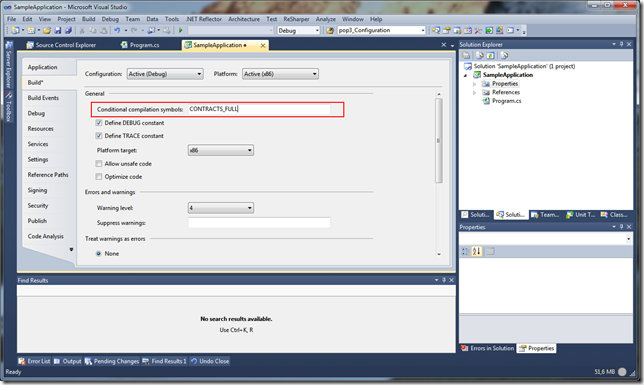
Next, enable the runtime checking on the Code Analysis tab:
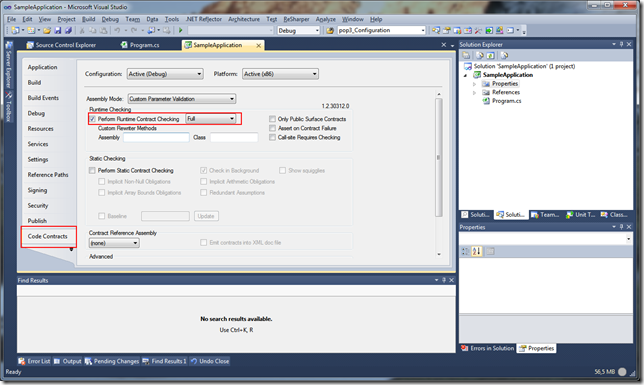
Now you can use the Code Contracts within the project. Here is a small sample application:
using System;
using System.Diagnostics.Contracts;

namespace SampleApplication
{
    internal class Program
    {
        public static int Divide(int a, int b)
        {
            Contract.Requires(b != 0);
            Contract.Ensures(a != 0 ? Contract.Result<int>() != 0 : Contract.Result<int>() == 0);

            return a/b;
        }

        private static void Main()
        {
            Console.Out.WriteLine("Divide(4, 2) = {0}", Divide(2, 2));
            Console.Out.WriteLine("Divide(4, 0) = {0}", Divide(4, 0));
        }
    }
}
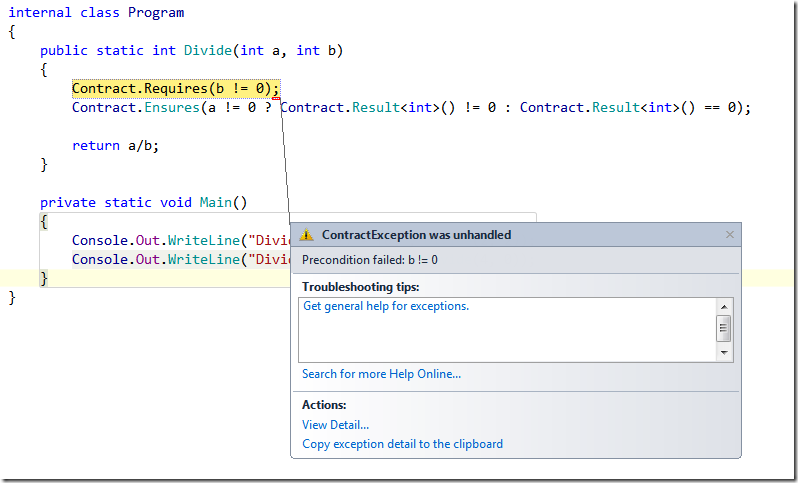
It’s just a small division method which has one pre- and one post-condition: The method requires b not to be 0. The post-condition specifies that the result of the method is 0 if a is 0 and not 0 when a is not 0. Very simple. If you run the program, it will throw an exception on the second execution of the Divide method, because b is 0 in this case:
Integration with Resharper
If you are using Resharper, you are accustomed to the null-reference checking the tool performs as you type. This is quite handy to spot null-references during design-time vs. run-time.
Here is another method which is annotated with code contracts:
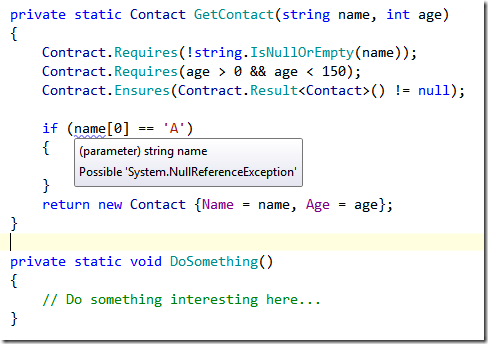
Notice the squiggles under the name variable and the hint to a System.NullReferenceException. If you would replace the first line of the method with a
if (string.IsNullOrEmpty(name)) throw new ArgumentNullException("name");
the warning would be gone, because Resharper would sense that the code path with the if-statement is never executed if name is null.
To enabled this feature with Code Contracts, a file with certain annotations must be placed in the directory C:\Program Files\JetBrains\ReSharper\v5.1\Bin\ExternalAnnotations\mscorlib (C:\Program Files (x86)\JetBrains\ReSharper\v5.1\Bin\ExternalAnnotations\mscorlib on x64 systems). The file is attached at the end of this post.
Visual Studio Editor Code Contracts extension
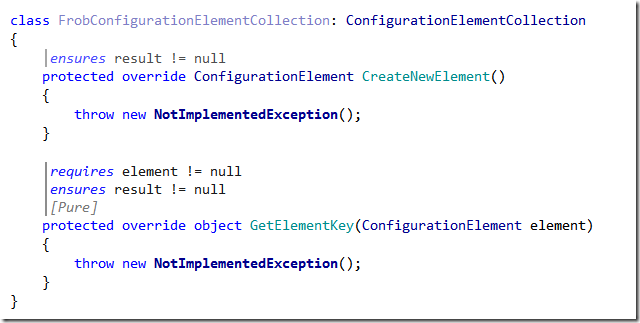
A Visual Studio extension is available from the Code Contracts team. It can be downloaded via the Extension Manager. It visualizes code contracts directly in the editor.
Credits
The Microsoft.CodeContracts.xml is taken from a Youtrack issue http://youtrack.jetbrains.net/issue/RSRP-190566. I’ve modified the file to work with .NET 4.0.
Downloads
77f16be7-fbde-40c6-ba20-0c00bf703cb6|2|3.0
This is the third post about the Workflow Foundation 4. The first two posts can be found here and here.
In the second article I introduced the IncrementExtension which asynchronously increments an integer value and waits one second each time it is called. The activity used bookmarks to stop and resume the workflow while it is running. The problem is this: When the application is forcefully stopped and restarted, the index will start again at zero. This is a shame, since the workflow instance is already persisted to the database between each call.
Enter PersistenceParticipant. This is a base class for extension that which to persist data to the instance store configured for a workflow application. The PersistenceParticipant class has three virtual methods that enable the persistence functionality. Here is the IncrementExtension from the last post extended with the persistence features:
1: using System;
2: using System.Activities;
3: using System.Activities.Hosting;
4: using System.Activities.Persistence;
5: using System.Collections.Generic;
6: using System.Threading;
7: using System.Xml.Linq;
8:
9: namespace WorkflowConsoleApplication1
10: {
11: class IncrementExtension : PersistenceParticipant, IWorkflowInstanceExtension
12: {
13: private static XName PersistencePropertyName = XNamespace.Get("urn:example.com:WorkflowDemo/1.0/Increment").GetName("LastValue");
14:
15: int _Index;
16: private WorkflowInstance _Instance;
17: Bookmark _Bookmark;
18:
19: public void Increment(Bookmark bookmark)
20: {
21: ThreadPool.QueueUserWorkItem(state =>
22: {
23: Thread.Sleep(1000);
24: var value = Interlocked.Increment(ref _Index);
25: _Bookmark = bookmark;
26: ContinueWorkflow(value);
27: }, null);
28: }
29:
30: private void ContinueWorkflow(int value)
31: {
32: _Instance.BeginResumeBookmark(_Bookmark, value, CompleteResume, null);
33: }
34:
35: public void CompleteResume(IAsyncResult ar)
36: {
37: var result = _Instance.EndResumeBookmark(ar);
38: }
39:
40: IEnumerable<object> IWorkflowInstanceExtension.GetAdditionalExtensions()
41: {
42: yield break;
43: }
44:
45: void IWorkflowInstanceExtension.SetInstance(WorkflowInstance instance)
46: {
47: _Instance = instance;
48: }
49:
50: protected override void CollectValues(out IDictionary<XName, object> readWriteValues, out IDictionary<XName, object> writeOnlyValues)
51: {
52: readWriteValues = new Dictionary<XName, object>
53: {
54: {PersistencePropertyName, new KeyValuePair<Bookmark, int>(_Bookmark, _Index)}
55: };
56: writeOnlyValues = null;
57: }
58:
59: protected override void PublishValues(IDictionary<XName, object> readWriteValues)
60: {
61: var keyvalue = (KeyValuePair<Bookmark, int>)readWriteValues[PersistencePropertyName];
62: _Index = (int)keyvalue.Value;
63: _Bookmark = (Bookmark)keyvalue.Key;
64:
65: ContinueWorkflow(_Index);
66: }
67: }
68: }
To save data to the instance store, a unique id for the the data, represented by an XName instance. This can be created using the XNamespace class (see line 13). With this unique id, the data of the extension instance can be persisted to the instance store. To save the data the extension needs to override the CollectValues method and add the properties to be persisted to the readWriteValues (lines 50 to 56). The runtime uses the DataContractSerializer to serialize the data. Since .NET 3.5 practically every class that has the SerializableAttribute on its class and/or implements the ISerializable interface can be serialized. At minimum, this method should serialize the bookmark. This is required to continue the workflow when it’s restarted.
When the workflow is restarted the runtime calls the PublishValues method on the extension to load the instance data from the store (line 59-66). This method also should check whether to resume any bookmarks to continue the workflow.
That’s all.
de522a3f-b593-4cfc-819a-b7f0ee5fef92|7|4.7
This is the second post about Workflow Foundation 4, Beta 2. This time, it’s about native activities and custom extensions. The sample used here is the same as in my last post (Persistence in Workflow Foundation 4). In that post, I used a simple workflow which incremented a integer value by one each time it was executed. To make things more interesting, the custom activity does this in an asynchronous manner.
The activity is a rather simple one, since it uses an extension to do the actual work:
1: using System.Activities;
2:
3: namespace WorkflowConsoleApplication1
4: {
5: public class IncrementActivity : NativeActivity
6: {
7: public OutArgument<int> Result { get; set; }
8:
9: protected override bool CanInduceIdle { get { return true; } }
10:
11: protected override void Execute(NativeActivityContext context)
12: {
13: var extension = context.GetExtension<IncrementExtension>();
14:
15: var bookmark = context.CreateBookmark("test", IncrementCallback);
16: extension.Increment(bookmark);
17: }
18:
19: private void IncrementCallback(NativeActivityContext context, Bookmark bookmark, object value)
20: {
21: Result.Set(context, (int)value);
22: }
23: }
24: }
The action has an out argument, the Result property. The value written to this argument is incremented by one each time the activity is called. The key to enable automatic workflow persistence are bookmarks. A short summary about bookmarks can be found in plenty of blogs (for example here). But most of them are wrong with their examples: The syntax has changed quite a bit when it comes to how to create bookmarks. When an activity calls the CreateBookmark method, the runtime automatically stops the workflow instance at that point and persists it to the instance store, if configured. The bookmark takes a name and a callback. The workflow instance is resumed, when the callback is called. In this example, the callback function sets the ‘Result’ argument to the value it receives from the extension.
Note that the activity needs to return true in the CanInduceIdle property. Otherwise, a call to CreateBookmark method will throw an exception.
Once the bookmark has been created, it is handed over to the IncrementExtension.
The IncrementExtension has one method that actually does something: The Increment method. It takes a Bookmark instance as input and resumes it after waiting for 1 second on a different thread:
1: using System;
2: using System.Activities;
3: using System.Activities.Hosting;
4: using System.Collections.Generic;
5: using System.Threading;
6:
7: namespace WorkflowConsoleApplication1
8: {
9: class IncrementExtension : IWorkflowInstanceExtension
10: {
11: int _Index;
12: private WorkflowInstance _Instance;
13: Bookmark _Bookmark;
14:
15: public void Increment(Bookmark bookmark)
16: {
17: ThreadPool.QueueUserWorkItem(state =>
18: {
19: Thread.Sleep(1000);
20: var value = Interlocked.Increment(ref _Index);
21: _Bookmark = bookmark;
22: ContinueWorkflow(value);
23: }, null);
24: }
25:
26: private void ContinueWorkflow(int value)
27: {
28: _Instance.BeginResumeBookmark(_Bookmark, value, CompleteResume, null);
29: }
30:
31: public void CompleteResume(IAsyncResult ar)
32: {
33: var result = _Instance.EndResumeBookmark(ar);
34: }
35:
36: IEnumerable<object> IWorkflowInstanceExtension.GetAdditionalExtensions()
37: {
38: yield break;
39: }
40:
41: void IWorkflowInstanceExtension.SetInstance(WorkflowInstance instance)
42: {
43: _Instance = instance;
44: }
45: }
46: }
To resume the workflow instance, the extension needs to know which instance it should resume. By default, it does not have this info. It only has an instance of a Bookmark. To get the workflow instance associated with an instance of an extension instance, the extension needs to implement the IWorkflowInstanceExtension. This method is called during the initialization of the extension instance.
Given the instance and the bookmark, the extension can now call the BeginResumeBookmark method on the workflow instance.
One question remains: Where does the extension instance come from? Simple, it is provided during the initialization of the workflow:
1: class Program
2: {
3: static void Main(string[] args)
4: {
5: var app = new WorkflowApplication(new Workflow1());
6:
7: // Specify that the workflow should be persisted everytime it is idle.
8: app.PersistableIdle = e => PersistableIdleAction.Persist;
9:
10: // Add an instance store that is used to persist the workflow.
11: app.InstanceStore = new SqlWorkflowInstanceStore("Data Source=(local);Initial Catalog=WorkflowDemo;Integrated Security=True");
12:
13: app.Extensions.Add(() => new IncrementExtension());
14: app.Load(new Guid("1E1A5265-A135-4D42-9D64-2ECCCF22E888"));
15: app.Run();
16:
17: Console.WriteLine("Current Instance id: {0}", app.Id);
18:
19: Console.ReadLine();
20:
21: app.Unload();
22: }
23: }
The extension is added to the workflow application in line 13. The app.Extensions.Add method either takes a singleton instance of the extension (which is then used each time the extension is requested) or a factory method which creates a new instance each time the extension is requested.
22ab04a9-e7a7-4077-b15f-79f2c7edb553|4|2.8
The Workflow Foundation has changed dramatically since .NET 3.5… and many changes have been made even since Beta one. One of the big changes is related to persistence. In earlier versions, either an SqlWorkflowPersistenceService or the and SQLPersistenceProviderFactory was used. Things have become much easier, though, with the release of the second beta of Visual Studio 2010. A workflow can now easily be persisted with a few lines of code. For this sample, I have created a simple workflow which just counts from zero upwards. Since persistence is primarily useful for long-running workflows, I have come up with this example:
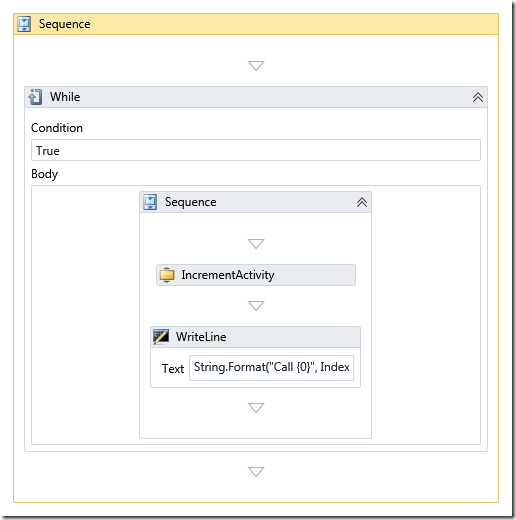
Obviously, this workflow runs very long… espacially, since the custom IncrementActivity waits one second before incrementing the variable ‘Index’.
To execute the workflow, only a few lines of code are required:
1: class Program
2: {
3: static void Main(string[] args)
4: {
5: var app = new WorkflowApplication(new Workflow1());
6:
7: // Specify that the workflow should be persisted everytime it is idle.
8: app.PersistableIdle = e => PersistableIdleAction.Persist;
9:
10: // Add an instance store that is used to persist the workflow.
11: app.InstanceStore = new SqlWorkflowInstanceStore("Data Source=(local);Initial Catalog=WorkflowDemo;Integrated Security=True");
12:
13: app.Run();
14:
15: Console.WriteLine("Current Instance id: {0}", app.Id);
16: Console.ReadLine();
17:
18: app.Unload();
19: }
20: }
Sure, there are simpler ways to execute a workflow but AFAIK only this method support persistence using the SqlWorkflowInstanceStore.
To reload the workflow from the database one line needs to be added to the code (in line 12, just before the app.Run() call):
1: app.Load(new Guid("1E1A5265-A135-4D42-9D64-2ECCCF22E888"));
Of course, the id needs to be replaced with the instance id of the workflow. Once the workflow is running, the instance id can be retrieved from the app.Id property (as shown in line 15).
That’s all.
To persist workflows to a database, the necessary tables and stored procedures must be created in a database. This can easily be accomplished with two files from the .NET 4 runtime directory under %windir%\Microsoft.NET\Framework\v4.0.21006\SQL\en. The SQL statements from the two files SqlWorkflowInstanceStoreSchema.sql and SqlWorkflowInstanceStoreLogic.sql have to be executed against the target database.
9afb5b90-d7fe-4c75-b567-9707ee24679a|3|4.7